
Getting Started with Arch Linux and Ricing: Featuring Hyprland via HyDE
This guide will walk you through a complete installation of Arch Linux using the official archinstall script, followed by the manual configuration of the HyDE desktop environment. HyDE is a pre-configured setup of the i3-gaps window manager, offering a unique and efficient user experience.
Part 1: Installation Using archinstall
Step 1: Prepare Your Installation Media
First, you'll need to create a bootable USB drive with the latest Arch Linux ISO. You can download the ISO from the official Arch Linux website. If you are installing on a virtual machine (e.g., VirtualBox, KVM), you can skip the step of creating a bootable USB. Instead, attach the downloaded Arch Linux ISO file directly to your virtual machine's settings as a virtual optical drive.
Once the USB is ready, plug it into your computer and boot from it. You may need to press a specific key (like F2, F10, F12, or Del) during startup to enter your system's BIOS/UEFI settings and select the USB drive as the boot device.
Step 2: Run the archinstall Script
After booting into the live environment, you should be greeted by a command prompt. The system will automatically connect to the internet if an Ethernet connection is detected. If you are on Wi-Fi, make sure to connect in using iwctl .
To start the guided installation, simply type:
archinstall
The script will launch and guide you through a series of interactive menus.
Step 3: Configure Basic Settings
The first few steps in the script are straightforward, below are the options that we need to configure:
-
Archinstall Language: Choose your preferred language.
- Locales: Choose your keyboard layout and locale
- Mirrors and repositories & Timezone
For these two, you can use "/" to search for your desired Mirror or Timezone

Step 4: Disk Configuration
This is the most critical part of the installation. Go to Disk Configuration > Partitioning
- Select Use a best-effort default partition layout (recommended, especially if you are not familiar with partitioning)
-
Select Storage: Choose the disk you want to install Arch Linux on. Be careful, as this process will erase all data on the selected drive. If you are dual-booting, please make sure that you select the right storage)
-
Filesystem: Select ext4 and go back to the main menu
- Swap: Enabled (Swap is a space on your hard drive that acts as virtual memory when your system's physical RAM is full. This prevents the system from crashing due to memory shortages, although accessing data in swap is significantly slower than accessing RAM. Disable if needed)
Step 5: System and User Configuration
-
Bootloader: Select GRUB as your bootloader. It's a widely used and reliable choice.
-
Hostname: Enter a name for your computer
- Authentication
-
Root Password: Set a strong password for the root user.
-
User Account: Choose to Add a user and create a new account for yourself. It is highly recommended to give this user sudo privileges when prompted. This will allow you to perform administrative tasks without needing to switch to the root user. Confirm and Exit, and go back to the main menu
-
-
Profile: This is where we deviate slightly. Select the Desktop profile, but do not choose a specific desktop environment from the list. Instead, choose none. This will install a base system with the necessary components for a graphical environment, but we will install HyDE's specific dependencies ourselves later.
Step 6: Network Configuration and Additional Packages
- Select Network Configuration > Use NetworkManager
- Additional Packages: I recommend to have these packages included on the Arch Linux installation. Use "/" to search for these packages, and press enter. Repeat until all packages are selected.
- iwd - This will be helpful for managing wireless networks via cli.
- nano - Text editor (use vim if preferred)
- fastfetch - neofetch-like tool for fetching system information and displaying it in a visually appealing way.
- openssh - SSH access
Step 7: Finalize and Install
Review all your settings on the final summary screen. If everything looks correct, select Install and the script will begin the process. This may take some time depending on your internet speed.
Once the installation is complete, the script will ask if you want to reboot the system.
Part 2: Installing and Configuring HyDE
Now that the base Arch system is installed, we can install and configure HyDE. The system will automatically connect to the internet if an Ethernet connection is detected. If you are on Wi-Fi, make sure to connect in using iwctl .
Step 1: Install Dependencies and Clone the HyDE Repository
Log-in as your user, and run these commands:
sudo pacman -S --needed git base-devel
git clone --depth 1 https://github.com/HyDE-Project/HyDE ~/HyDE
cd ~/HyDE/Scripts
./install.sh
We can leave other options at default during the installation, consider the recommended settings below:
- For the pre install, select 1 for "dark" mode.
- Select Paru(bin) as AUR helper and zsh as your shell
- Install oh my zsh (framework built on top of zsh)
Reboot after the installation, make sure to remove the installation media.
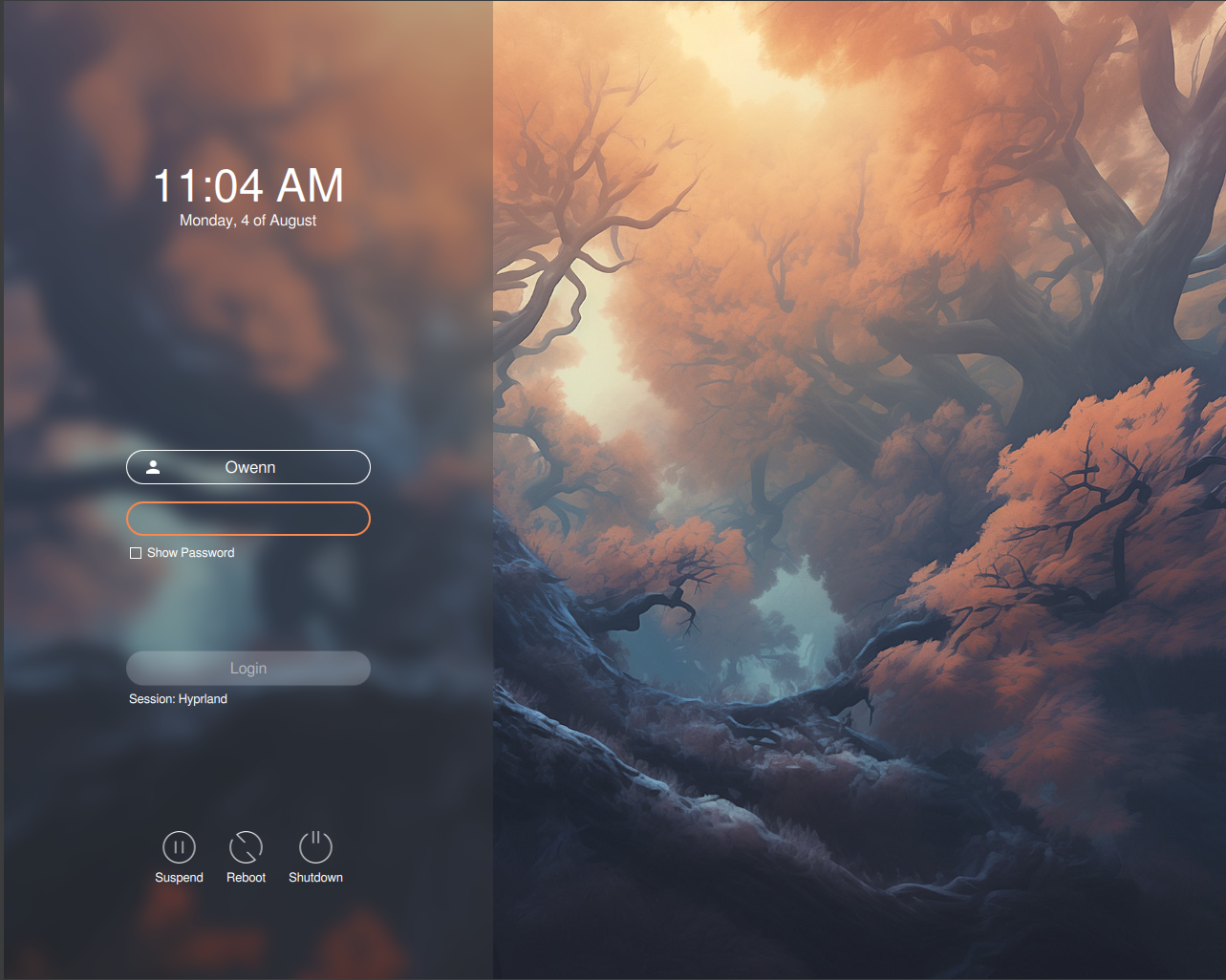
Part 3: Troubleshooting
-
If you are running on NVIDIA graphics, make sure to install the necessary drivers.