
Setting up Distributed Storage System in k3s with Longhorn
Introduction
Longhorn is a lightweight, Kubernetes-native distributed block storage system. It provides persistent storage for workloads that need data to survive pod restarts, rescheduling, or node failures.
Longhorn works by attaching a volume controller (engine) to a pod and storing replicated data across multiple nodes. If a node goes down, another replica can take over, keeping the volume available.
Prerequisites
- Working k3s environment. At least 3 nodes are recommended for full replication and high availability. Check out this guide for more information: High-Availability k3s Cluster Guide with k3sup and kube-vip
- A dedicated partition or extra unallocated space on your nodes is recommended, though not strictly required.
-
Longhorn relies on host-level binaries to manage block devices and network file sharing. Run the following commands on every node in your cluster:
A. open-iscsi (Block Storage Support)
Longhorn uses iSCSI to expose block devices to your pods.
# Ubuntu / Debian
sudo apt update && sudo apt install -y open-iscsi

# RHEL / CentOS
sudo yum install iscsi-initiator-utils -y
After installation, ensure the service is running:
sudo systemctl enable --now iscsidB. nfs-common (ReadWriteMany Support), dm-crypt for encryption
To support
ReadWriteMany(RWX) volumes (where multiple pods access the same volume), Longhorn needs an NFS client.# Ubuntu / Debian sudo apt update && sudo apt install -y nfs-common cryptsetup # RHEL / CentOS sudo yum install nfs-utils -y # Load modules sudo modprobe nfs sudo modprobe nfsd sudo modprobe dm_cryptC. Other Utilities
Ensure these common tools are present (most are pre-installed on standard distros):
-
bash,curl,findmnt,grep,awk,blkid,lsblk,jq
-
- Download the latest Helm release:
curl https://raw.githubusercontent.com/helm/helm/main/scripts/get-helm-3 | bash #Verify helm version - Fix KubeDNS Warning (optional but recommended)
-
Longhorn relies heavily on DNS for volume attachments. Having only one CoreDNS pod (the k3s default) creates a single point of failure.
To increase the replica count to 2:
kubectl scale deployment coredns -n kube-system --replicas=2
-
-
Longhorn provides a handy script to check if your cluster is truly ready. Run this on your non k3s/remote terminal, and then check for errors:
Bash# For AMD64 platform curl -sSfL -o longhornctl https://github.com/longhorn/cli/releases/download/v1.10.1/longhornctl-linux-amd64 # Anticipated error, create longhorn namespace kubectl create namespace longhorn-system # Execute chmod +x longhornctl ./longhornctl check preflight
Installation
-
Add the Longhorn Helm repository:
helm repo add longhorn https://charts.longhorn.io -
Fetch the latest charts from the repository:
helm repo update -
Install Longhorn in the
longhorn-systemnamespace.helm install longhorn longhorn/longhorn --namespace longhorn-system --create-namespace --version 1.10.1 -
To confirm that the deployment succeeded, run:
kubectl -n longhorn-system get podThe result should look like the following:
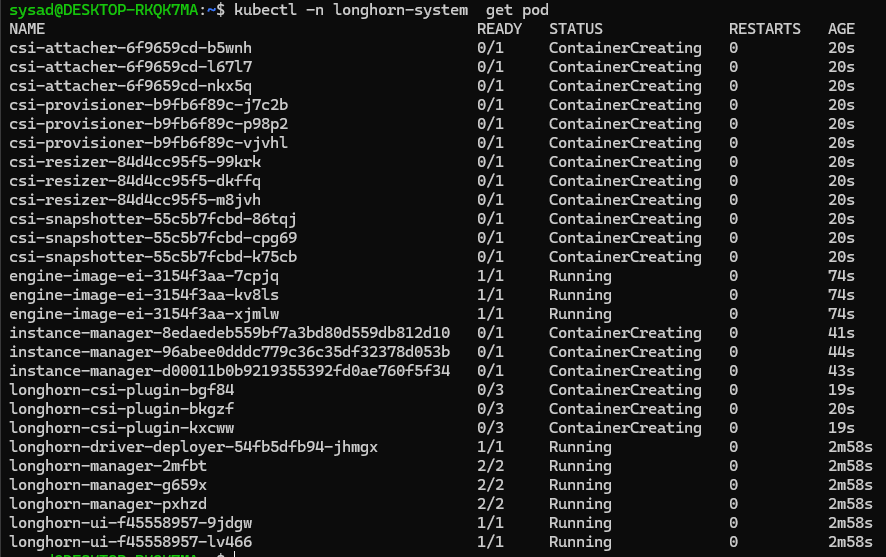
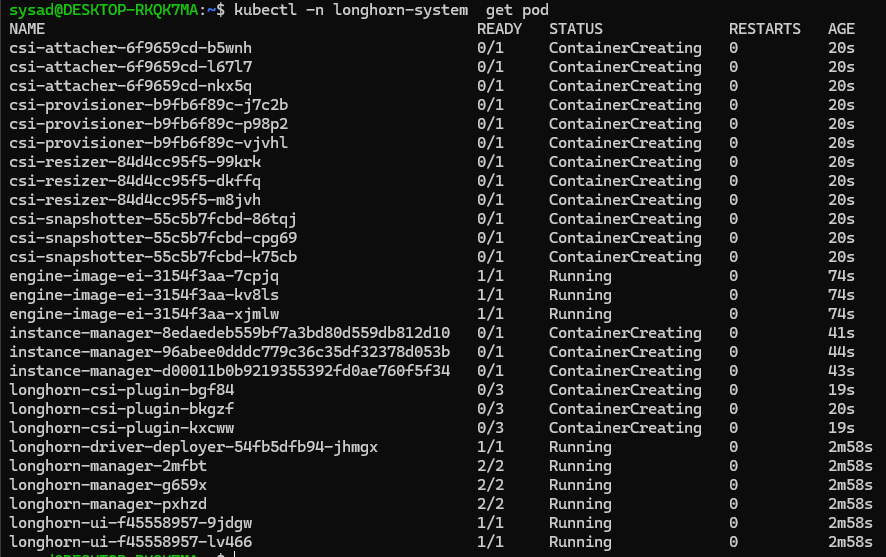
Note: It might take a few minutes for all containers to be in "Running" status
Configuration
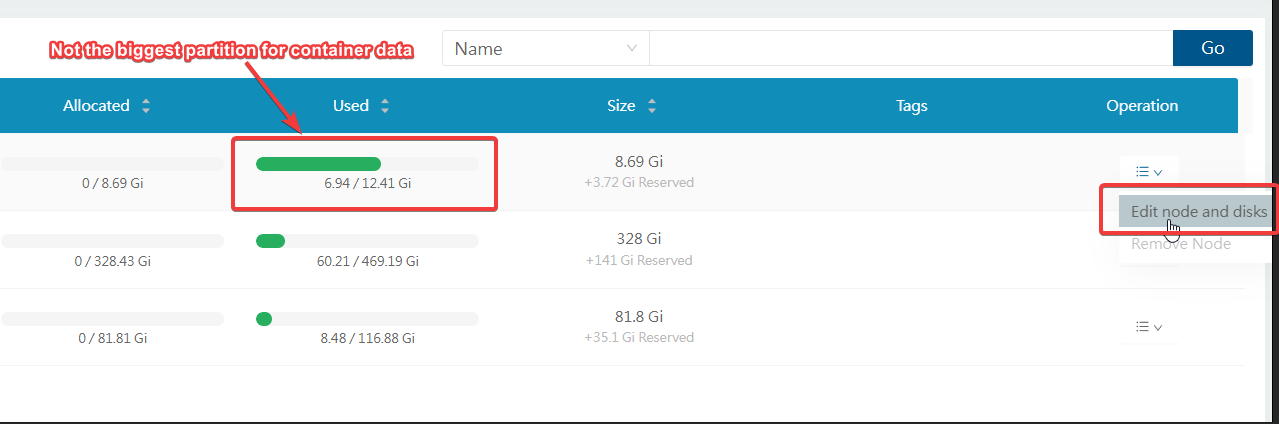
By default, Longhorn stores it's data per node at /var/lib/longhorn. You may want to configure this if that default location is in a small partition/slow performing like an SD card (if you are using Raspberry Pi), and you want to use another partition or drive that has larger capacity and faster.
A quick way to do this is via Longhorn UI. By default, Longhorn UI is only accessible inside the cluster, and it's actually the best practice in terms of security. For this guide, let's try and learn how the web UI works by temporarily exposing it.
kubectl port-forward -n longhorn-system svc/longhorn-frontend 8080:80Now you can browse it via http://127.0.0.1:8080/
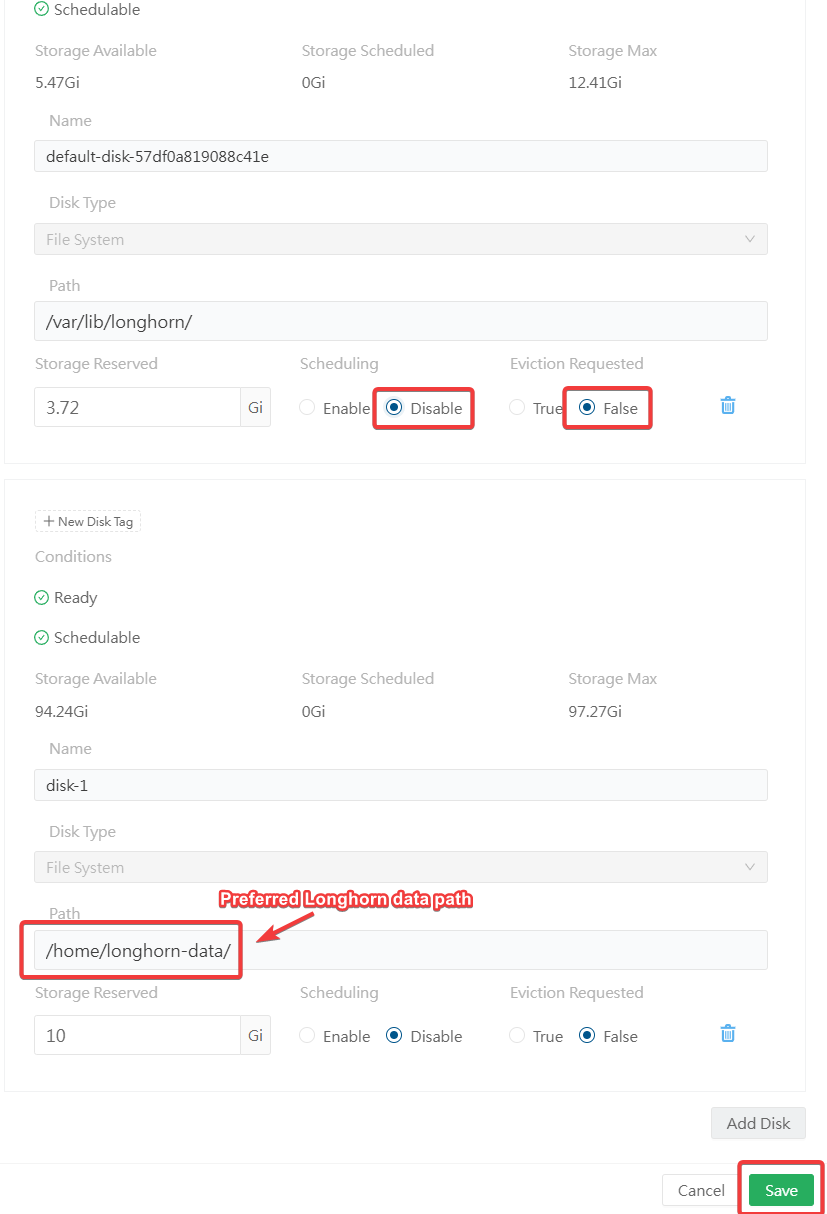
Click on "Edit node and disks"
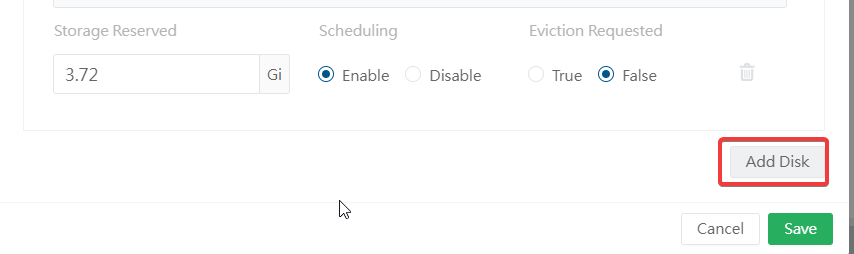
Click "Add Disk"
Create your new Longhorn folder
mkdir /home/longhorn-dataFrom here, define the new Longhorn path on the new disk that you added. You may want to remove the old path by disabling "Scheduling" and setting "Eviction Requested" to "False". Click Save.
Optional: Exposing the Web-UI with basic authentication
Earlier, we exposed the web UI temporarily by running a simple attached command. Exposing the web UI allows cluster administrators to easily manage volumes and monitor storage from the web UI.
A prerequisite for this guide is an installation of a well configured Traefik Ingress controller handling ingress and cert-manager for the TLS certificates. Please see Configuring Ingress and TLS Certificates with Traefik and Cert-Manager
Create the basic auth credentials. Without this, anyone could access the Longhorn UI if exposed externally.
USER=<USERNAME_HERE>; PASSWORD=<PASSWORD_HERE>; echo "${USER}:$(openssl passwd -stdin -apr1 <<< ${PASSWORD})" >> authkubectl -n longhorn-system create secret generic longhorn-basic-auth --from-file=authCreate the middleware: Middleware is a Traefik concept that modifies requests before reaching your service. Basic Auth middleware enforces username/password authentication.
apiVersion: traefik.io/v1alpha1
kind: Middleware
metadata:
  name: longhorn-basic-auth
  namespace: longhorn-system
spec:
  basicAuth:
    # The secret that we created
    secret: longhorn-basic-auth
kubectl apply -f longhorn-basic-auth-mw.yamlCreate Longhorn Ingress:
apiVersion: networking.k8s.io/v1
kind: Ingress
metadata:
  name: longhorn-ui
  namespace: longhorn-system
  annotations:
    kubernetes.io/ingress.class: traefik
    traefik.ingress.kubernetes.io/router.middlewares: longhorn-system-longhorn-basic-auth@kubernetescrd
    cert-manager.io/cluster-issuer: letsencrypt-cloudflare
spec:
  tls:
  - hosts:
      # Your domain, example:
    - longhorn.homelab.penguincave.link
      # Certificate secret name that the cluster-issuer creates
    secretName: longhorn-cert-secret
  rules:
      # Your domain, example:
  - host: longhorn.homelab.penguincave.link
    http:
      paths:
      - path: /
        pathType: Prefix
        backend:
          service:
            name: longhorn-frontend
            port:
              number: 80
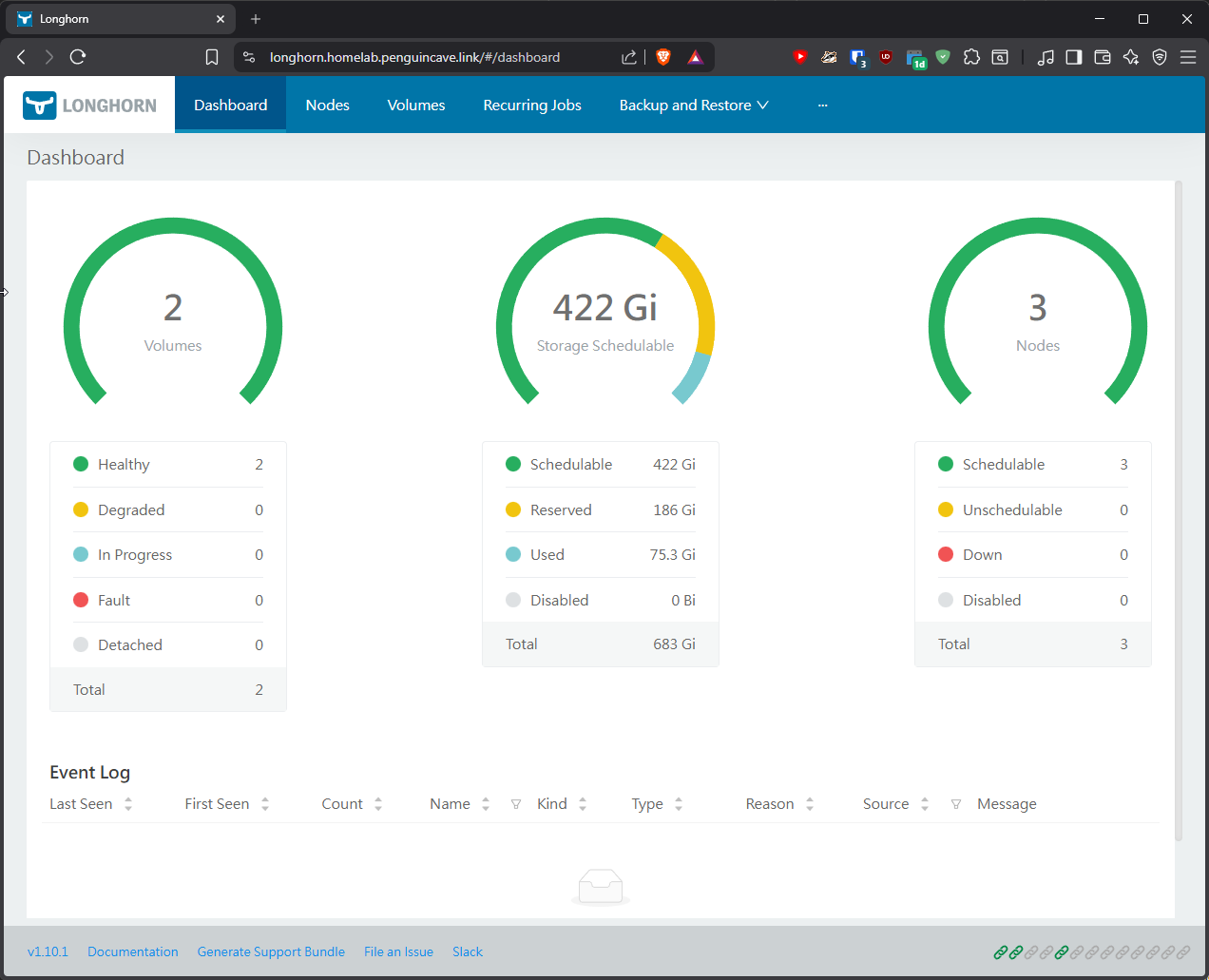
kubectl apply -f longhorn-ingress.yamlAccess the dashboard using the defined host and enter your auth credentials. That's it! You should now be able to access the Longhorn Dashboard securely with a valid certificate. :)
Bonus: Best Practices
Longhorn enforces strict exclusive access (ReadWriteOnce) to prevent filesystem corruption. When a node disappears without a clean shutdown, the Kubernetes control plane retains the record that the volume is attached to the failed node (baret-lt). The scheduler assigns the pod to a healthy node (meyza-pi), but the attachdetach-controller blocks the move to protect data integrity.
To automate recovery from power failures and hardware hangs, implement these three layers:
1. Enable Longhorn Pod Deletion Policy
Longhorn can automatically force-delete pods stuck on failed nodes to trigger volume detachment.
-
Open the Longhorn UI.
-
Go to Setting > General > Pod Deletion Policy When Node is Down.
-
Change to:
delete-both-statefulset-and-deployment-pod. Longhorn will remove the stuck pod record, allowing the volume to transition to the new node without manual intervention.
2. Configure Kubernetes Node Problem Detector
The default timeout for a node to be marked Unknown and for pods to be evicted is 5 minutes. This is too slow for high-availability requirements.
-
Adjust the
kube-controller-managerarguments:-
--node-monitor-grace-period=20s -
--pod-eviction-timeout=30s
Note: In k3s, these are set in the service config or via flags on the server binary.
-
3. Implement Pod Disruption Budgets (PDB) and Anti-Affinity
If your workload allows, use multiple replicas across different nodes. If one node loses power, the service remains available on others while the controller handles the slow migration of the affected PVC.